Connect Claude to your tools
⏱ 20 min7 steps
This one runs in , in . If you'd rather stay in the , see Connect Claude to the tools you already run on.
Claude can work with the apps you already use: your calendar, your files, the place you keep your tasks. A is what lets it in. The Claude app calls it a connector, and the technical name is .
You'll connect Google Calendar, see exactly what it lets Claude do, and disconnect it at the end. Google's sign-in screens can ask more than you expect. That's normal, and the fixes are under each step.
Claude Code Claude, working inside Terminal. It can make files and run things on your Mac, with a safety checker watching what it does. All wordsTerminal An app on your Mac where you type instructions instead of clicking on things. Claude Code works inside it. All wordsClaude app Claude on your phone or computer, where you chat with it by typing. claude.ai is the same thing in a web browser. All wordsconnector A link between Claude and another app or service, like Google Calendar or Linear, so Claude can read from it or work in it. All wordsMCP Short for Model Context Protocol. It's a standard way to connect Claude to other apps and services, so it can read from them or work in them. All wordsBefore this, you'll want:
Steps
Decide what Claude may connect to, and what it never will
Some connections only read. Claude can look at your calendar or search your files, and nothing changes. Others act. They can send, change or delete, and whatever they do happens in your name.
Start with connections that read. Add one that acts only when a job needs it, and disconnect what you stop using.
Never connect:
- Anything that moves money: your bank, cards or payroll.
- Accounts that can take your work down, like your , website or , until you've used Claude for a while and a piece shows you how.
- Your main email. A Gmail made only for Claude is safer, and A Gmail for Claude sets one up.
- Your .
- Accounts holding other people's private information, like clients' records or your work systems, unless whoever owns them says yes.
- A connector from a developer you don't know. Claude marks the ones Anthropic hasn't reviewed in depth Community.
And never paste a password, key or token into a chat with Claude. If a service needs one, you type it on that service's own sign-in page.
- Write down the one app you'd most like Claude to look at for you.
- Check it against the list above.
For this piece, use Google Calendar. It's a good first connection because Claude only needs to read it, and it lets Claude see your calendar, not your email.
domain Your website's name on the internet, like gethomebydark.com. You rent it by the year from a company called a registrar. All wordshosting A company's computers that keep your site or app running on the internet, so people can reach it. All wordsdatabase Organized storage for information your app keeps, like sign-ups, orders or saved lists. All wordspassword manager An app that remembers a different strong password for every account, so you only remember one. All wordsThat's not what I see
- I don't use Google Calendar.
- Google Drive connects the same way. Use it in place of Google Calendar in every step, block anything that creates, changes or deletes files, and ask about a you worked on this week. If you don't have a Google at all, do the first step of A Gmail for Claude to make one, then come back.file One document on your computer, like a letter or a photo. Files live inside folders. All wordsaccount A sign-in with a company, like a domain, email or hosting. Whoever owns the account controls what's in it. All words
Connect Google Calendar in the Claude app
- In your , go to claude.ai/customize/connectors. In the Claude desktop app, click Customize in the sidebar, then Connectors.
- Click Discover, type Google Calendar in Search connectors, and click it. If it's already under Your connectors, click it there.
- Click Connect. On some pages the button says Connect to Claude.
- to Google with the account that has your calendar. Read what Claude is asking to see, then it.
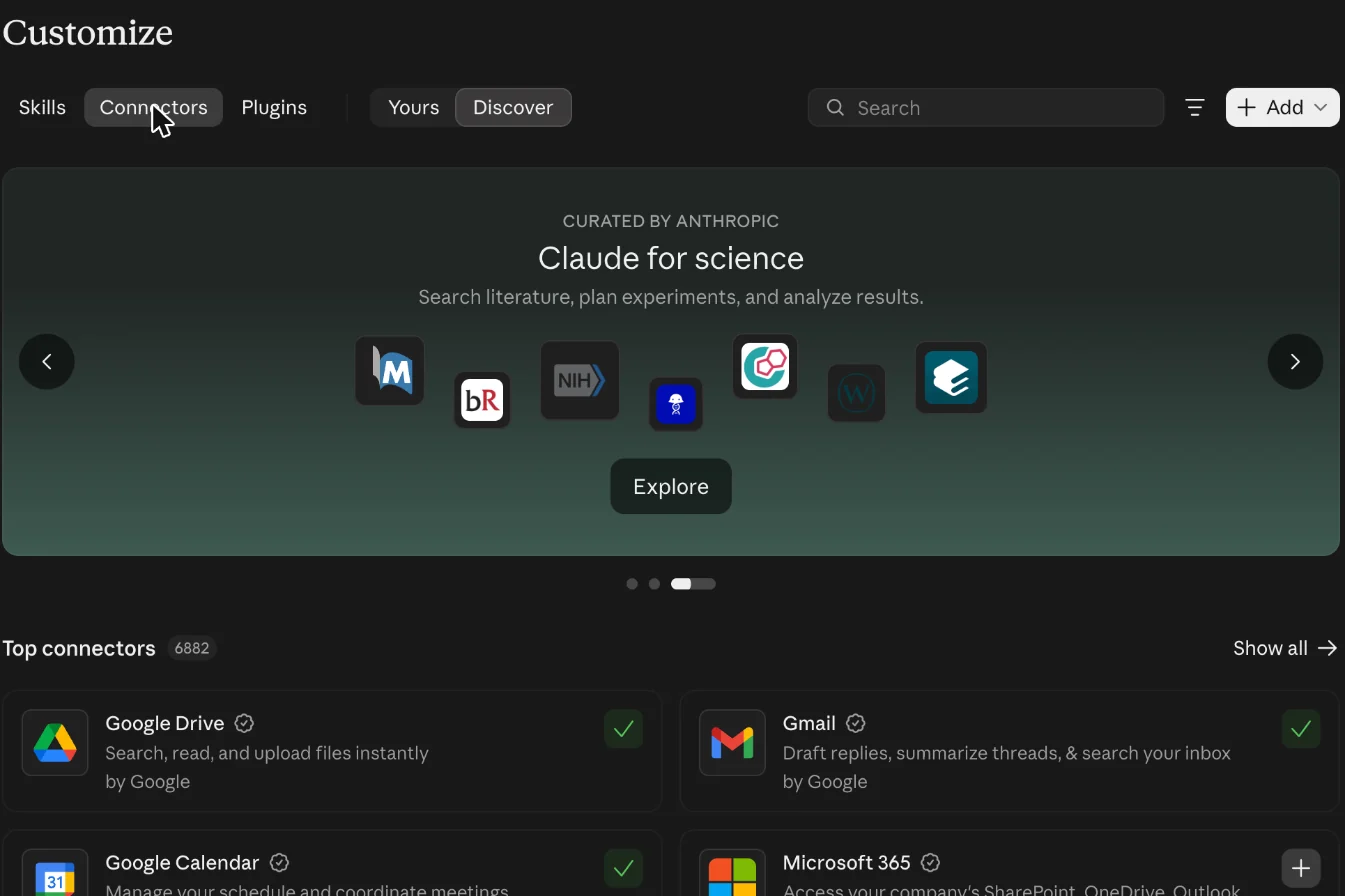
You should see:
Google Calendar under Your connectors, with a check mark and Connected.
That's not what I see
- Google Calendar won't connect, or there's no button to connect it.
- On a Team or Enterprise plan, an Owner has to turn the connector on for everyone first. Otherwise, check you're signed in to the same Claude account you use for Claude Code, and try again in a new window.
- It connected the wrong Google account.
- Click Google Calendar under Your connectors, then Disconnect. Open a private window, or sign out of the other Google account in this browser, and connect again so the right one is picked.
Check what it can do, and block what changes things
Every connector comes with a list of things Claude can do through it, called tools. Anthropic's help page lists what each Google connector can do, and the list changes. When this piece was written, in October 2026, this one could also create, change and delete events. Check what yours can do today.
- On Customize > Connectors, click Google Calendar under Your connectors.
- Read the list under Tool permissions.
- For anything that creates, changes, deletes or responds to events, choose Blocked.
- Set the tools that only read to Needs approval, so Claude asks you first.
You should see:
Under Tool permissions, each tool or group of tools has three choices: Always allow, Needs approval and Blocked.
That's not what I see
- I don't see Tool permissions.
- Some plans don't show it. Skip this step. Disconnecting at the end of this piece is the sure way to switch it off.
Ask Claude something only your calendar knows
- Start a new chat in the Claude app or at claude.ai.
- Click + at the lower left of the message box, then Connectors, and turn on Google Calendar.
- Copy the message below.
What's on my calendar tomorrow? Only read it. Don't create or change anything.
- Paste it into the chat with Cmd+VCtrl+V and press Enter.
- If Claude asks to use Google Calendar, choose Allow once.
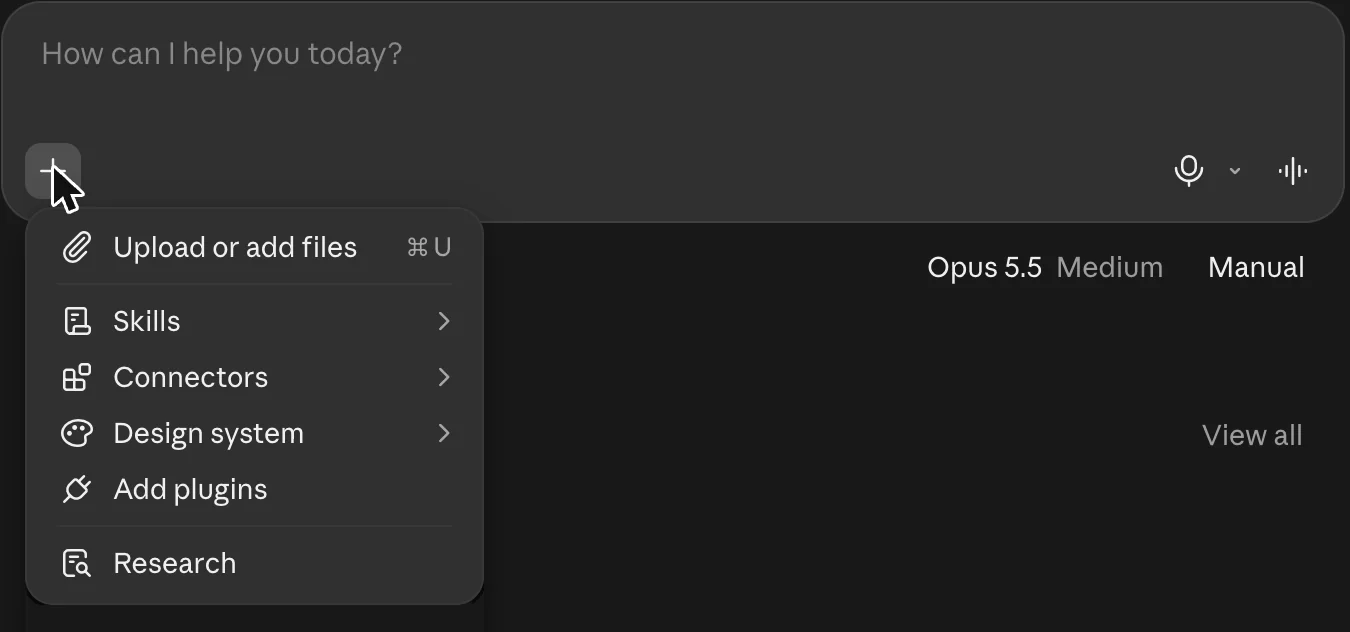
You should see:
Claude may first ask to use Google Calendar. Then it answers from your calendar, with links to the events it used.
That's not what I see
- Claude says it can't see my calendar.
- Click + in the message box, then Connectors, and check Google Calendar is turned on for this chat. If it isn't listed, go back to the connect step.
See your connections from Terminal
Connections you add in the Claude app work in Claude Code too, when Claude Code is signed in with the same Claude account. Claude Code can also have connections of its own, added with claude mcp add. One lists both.
-
Open Terminal (Cmd+SpaceWindows key, type Terminal, press Enter).
-
Go to your my-idea . Type this and press Enter:
cd ~/Backyard/my-ideacd ~\Backyard\my-idea -
Check the says my-idea.
-
List your connections. Type this and press Enter:
claude mcp list
If you add a connection with a key one day, this list can show it. Don't share a screenshot of it.
command An instruction you type into Terminal. Your Mac does it when you press Enter. All wordsfolder A place on your computer that holds files and other folders, like a drawer in a filing cabinet. All wordsprompt line The line in Terminal that ends with a % sign. The word right before the % is the folder you're in. All wordsYou should see:
Checking MCP server health…, then one line for each connection. One starts with claude.ai Google Calendar and ends in a check mark (√ in some older windows) and Connected.
Checking MCP server health…

claude.ai Google Calendar: https://calendarmcp.googleapis.com/mcp/v1 - ✔ Connected
That's not what I see
- It says "cd: no such file or directoryCannot find path … because it does not exist".
- The my-idea folder isn't there. It comes from Check the idea first, so do that piece first, then come back.
- It says "zsh: command not found: claudeThe term 'claude' is not recognized".
- This Terminal window doesn't know about Claude Code. Close the window with Cmd+WCtrl+Shift+W, open a new one and try again. If it still says that, go back to Claude Code and sign in.install Put a new program on your computer so you can use it. All words
- Google Calendar isn't in the list.
- Claude Code shows the Claude app's connections only when it's signed in with your Claude account. Check you connected Google Calendar on that same account. Then wait a minute and run claude mcp list again.
-
Start Claude Code and look at what each connection can do
-
Start Claude Code. Type this and press Enter:
claude -
Open the list of connections. Type this and press Enter:
/mcp -
Press the down arrow to claude.ai Google Calendar and press Enter.
-
Press Enter on View tools, and read the list. Tools marked only look. The others can change your calendar, and Blocked in the Claude app may not hold here. Disconnect in Step 7 is the sure way.
-
Press Esc to go back, and Esc again to close the list.
You should see:
A Manage MCP servers list with a claude.ai section and a line for claude.ai Google Calendar. Under View tools, a tool that only looks ends in read-only, and one that deletes ends in destructive. The sample below is an example; yours may list different tools.
Tools for claude.ai Google Calendar
9 tools
❯ Lists calendar events in…  read-only
  Creates a calendar event.
  Deletes a calendar event.  destructive
That's not what I see
- Google Calendar isn't in the /mcp list.
- Press Esc, type /status and press Enter. It shows how Claude Code is signed in. The Claude app's connections only show up when that's your Claude account. If it is, type , start claude again and look once more./exit Typed in Claude Code, it ends the conversation and takes you back to Terminal. All words
- I see connections I never added, like claude.ai Claude Docs.
- Anthropic adds a few itself. Ones you've never signed in to are tucked behind a Show unused connectors line at the end of the claude.ai section.
-
Disconnect it until you need it
Every connection is a door into one of your accounts. Close the ones you aren't using.
- Go back to claude.ai/customize/connectors and click Google Calendar under Your connectors.
- Click Disconnect. That takes it out of Claude Code too. You'll connect what you need when a piece needs it.
Two more ways to switch one off, for later:
- For one project only: in Claude Code, type /mcp, pick the connection and choose Disable.
- A connection added in Claude Code itself: type claude mcp remove and its name in Terminal.
You should see:
Google Calendar stays in your list, with Connect where Disconnect was.
That's not what I see
- I want it gone from my list, not only disconnected.
- On the connector's page, open the three-dot menu and choose Remove. You can add it again later from Discover.
Your challenge
Pick one tool you use every week and connect it, read-only if you can. Use it with Claude for a week. If you haven't asked Claude to use it by then, disconnect it.
Last checked 2026-10-20
Connect and automate › 1. Connect it
Connect Claude to your tools
One-page card · print it or keep it open
What you'll do
This one runs in Claude Code, in Terminal. If you'd rather stay in the Claude app, see Connect Claude to the tools you already run on.
The steps
- Decide what Claude may connect to, and what it never will
- Connect Google Calendar in the Claude app
- Check what it can do, and block what changes things
- Ask Claude something only your calendar knows
What's on my calendar tomorrow? Only read it. Don't create or change anything.
- See your connections from Terminal
- Start Claude Code and look at what each connection can do
- Disconnect it until you need it
If it goes wrong
- I don't use Google Calendar. Google Drive connects the same way. Use it in place of Google Calendar in every step, block anything that creates, changes or deletes files, and ask about a file you worked on this week. If you don't have a Google account at all, do the first step of A Gmail for Claude to make one, then come back.
- Google Calendar won't connect, or there's no button to connect it. On a Team or Enterprise plan, an Owner has to turn the connector on for everyone first. Otherwise, check you're signed in to the same Claude account you use for Claude Code, and try again in a new window.
- I don't see Tool permissions. Some plans don't show it. Skip this step. Disconnecting at the end of this piece is the sure way to switch it off.
- Claude says it can't see my calendar. Click + in the message box, then Connectors, and check Google Calendar is turned on for this chat. If it isn't listed, go back to the connect step.
Words
- connector: A link between Claude and another app or service, like Google Calendar or Linear, so Claude can read from it or work in it.
- read-only: Allowed to look at things but not change, send or delete anything.