Connect Claude to the tools you already run on
⏱ 25 min5 steps
This one runs in the . If you use , see Connect Claude to your tools.
Your calendar, your files and your inbox already know most of what happens in your business. A lets Claude look at one of them while you chat. Some connections only read, and some can send, change or delete things in your name, so the choice of what to connect matters more than the clicks. Bring the Google your business calendar or files live in. Google's permission screens ask more than most people expect, and pausing to read them is part of the job.
Claude app Claude on your phone or computer, where you chat with it by typing. claude.ai is the same thing in a web browser. All wordsClaude Code Claude, working inside Terminal. It can make files and run things on your Mac, with a safety checker watching what it does. All wordsconnector A link between Claude and another app or service, like Google Calendar or Linear, so Claude can read from it or work in it. All wordsaccount A sign-in with a company, like a domain, email or hosting. Whoever owns the account controls what's in it. All wordsSteps
Decide what Claude may read, and what it never touches
The Claude app calls a connection a connector. The technical name is . Once a tool is connected, Claude can use it in any chat you switch it on in, and what it does there is done as you.
Connectors do two kinds of thing:
- Read: look at events, files or messages. Nothing changes.
- Act: create, send, change or delete. A painter's calendar could lose a booking. A store's shared could lose a price list.
Start with reading. Most of what an owner wants from Claude, like "what's on this week" or "find last spring's quote for the kitchen job", needs nothing more.
Never connect:
- Anything that moves money or keeps your books: your bank, your card reader, payments, payroll, or your accounting or invoicing software.
- Your .
- Anything that can take your business down, like your website , your or your booking system's settings.
- Customer records you'd have to answer for, like a client list or patient notes, unless whoever owns them says yes.
- A connector from a company you don't know. Claude marks the ones Anthropic hasn't reviewed in depth Community.
Mail has its own lesson later in this part, with its own rules. Leave it off today. And never paste a password, key or token into a chat. If a service asks for one, you type it on that service's own page.
- Write down the tools your business runs on.
- Next to each, write read, act or never.
That's not what I see
- The tool I most want to connect is on the never list.
- Leave it off. Download a report from it instead, take the private details out, and attach that to a chat, the way the lessons in Your numbers do.
Connect your calendar or your Drive
Pick the one you use most: Google Calendar if your days run on bookings, Google Drive if they run on quotes, price lists and paperwork. Use the same one in every step after this.
- In your , go to claude.ai/customize/connectors. In the Claude desktop app, click Customize in the sidebar, then Connectors.
- Click Discover, type Google Calendar or Google Drive in Search connectors, and click it. If it's already under Your connectors, click it there.
- Click Connect. On some pages the button says Connect to Claude.
- Sign in to Google with your business account. Read what Claude is asking to see, then approve it.
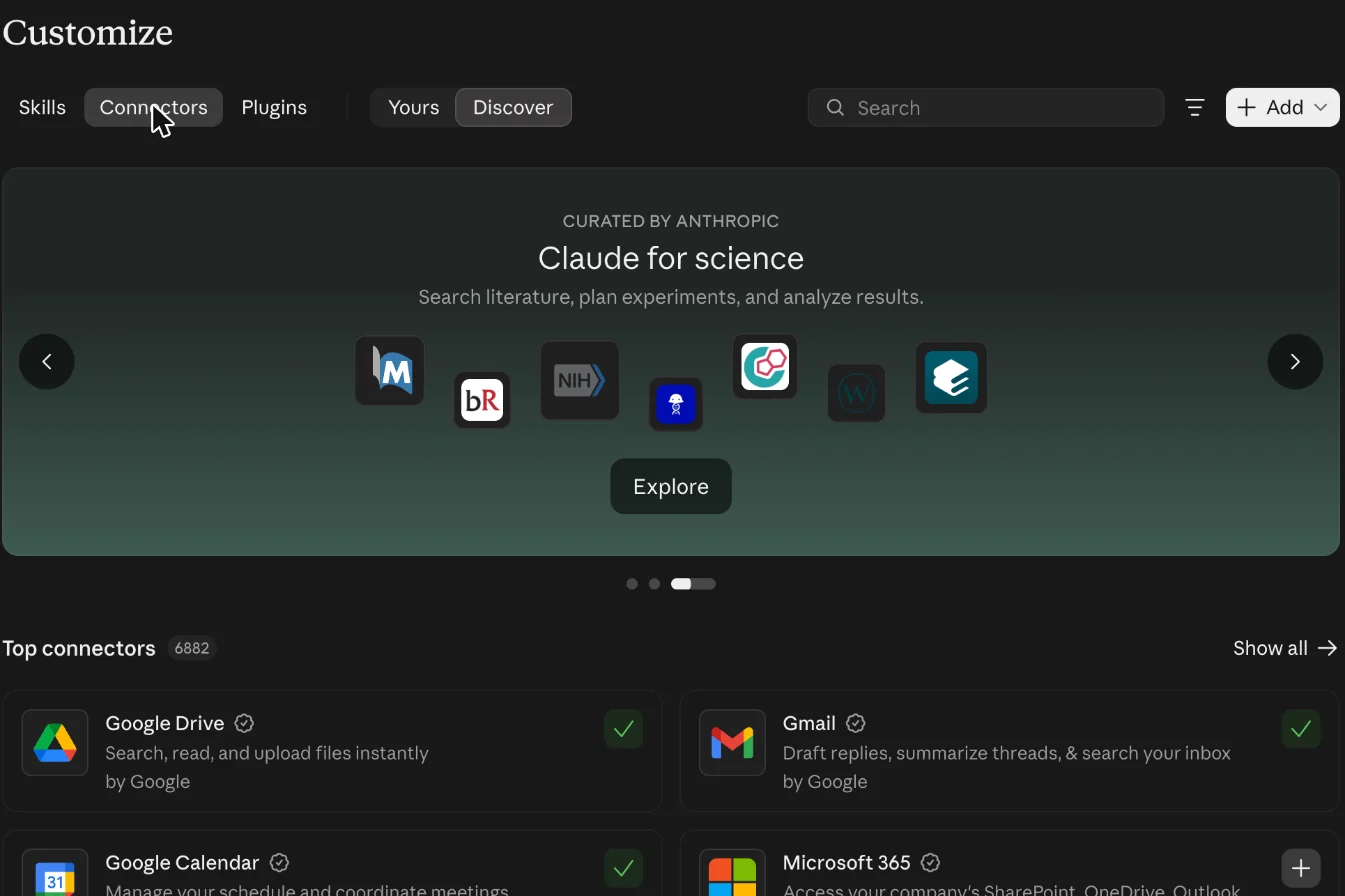
You should see:
Google Calendar or Google Drive under Your connectors, marked Connected.
That's not what I see
- There's no button to connect it, or it won't connect.
- On a Team or Enterprise plan, an Owner has to turn the connector on for everyone first. Otherwise, check you're signed in to the Claude account you meant to use, and try again in a new window.
- It connected my personal Google account, not the business one.
- Click the connector under Your connectors, then Disconnect. Open a private window, or sign out of the other Google account in this browser, and connect again so the right one is picked.
- My business doesn't use Google.
- Search Discover for the calendar or storage you do use. Check who makes the connector before you click Connect. If you can't find one, skip ahead to the challenge and come back when you need a connection.file One document on your computer, like a letter or a photo. Files live inside folders. All words
Check what it can do, and block anything that changes things
Every connector comes with a list of things Claude can do through it, called tools. Anthropic's help page lists what each Google connector can do, and the list changes. When this lesson was written, in October 2026, the Google Calendar connector could also create, change and delete events, and the Google Drive one could create and copy files. The help page also lists sharing, moving and trashing Drive files. Check what yours can do today.
- On Customize > Connectors, click your connector under Your connectors.
- Read the list under Tool permissions.
- For anything that creates, changes, moves, shares, deletes or responds, choose Blocked.
- Set the tools that only read to Needs approval for now, so Claude asks you first. Reading tools on Always allow are fine, and a needs them, as the shows.
- Never set a tool that sends, changes or deletes to Always allow.
You should see:
A list under Tool permissions, with a choice for each tool or group of tools: Always allow, Needs approval or Blocked.
That's not what I see
- I don't see Tool permissions.
- Not every plan shows it. Skip this step, and say no whenever Claude asks to do anything but read. Don't use this connector in a scheduled task, since nobody is there to say no. The last step, disconnecting, is the sure way to switch it off.
Ask Claude something only that tool knows
This message asks one plain question your calendar or your Drive can answer, and tells Claude to stop if it needs anything more than reading.
- Start a new chat in the Claude app or at claude.ai.
- If there's a button under the message box, on the right, that says Manual or Auto, click it and pick Manual, so Claude asks before it uses a tool.
- Click + at the lower left of the message box, then Connectors, and switch on your connector.
- Copy the message below.
Using the calendar or Drive connector switched on in this chat, answer one question. If it's my calendar, tell me what I've got on tomorrow. If it's my Drive, list the five files I worked on most recently. Only read. Don't create, change, move, share or delete anything, and don't ask to. If you need a tool that does more than read, stop and tell me instead.
- Paste it into the chat with Cmd+VCtrl+V and press Enter.
- If Claude asks to use the connector to read or search, choose Allow once. For anything else, choose Deny. Never choose Always allow for a tool that sends, changes or deletes.
- Open your calendar or Drive yourself and check one thing Claude named is really there.
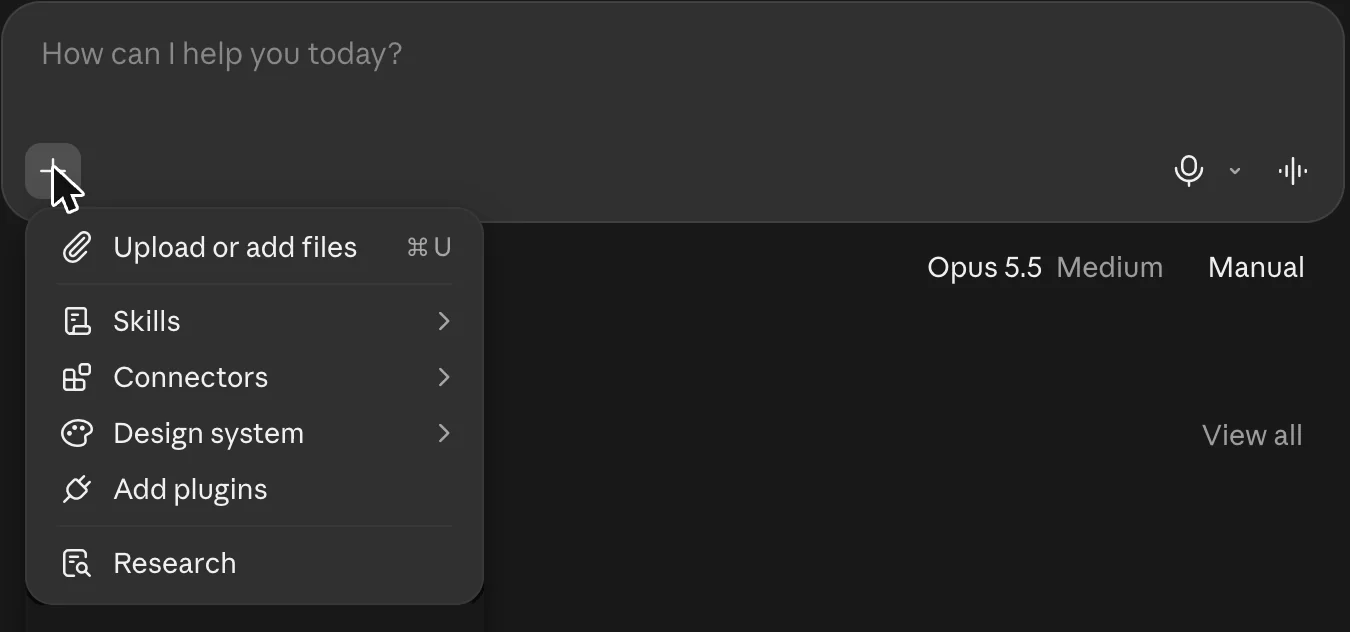
You should see:
Claude may first ask to use the connector. Then it answers from your calendar or your files, and names the events or files it used.
That's not what I see
- Claude says it can't see my calendar or my files.
- Click + in the message box, then Connectors, and check the connector is switched on for this chat. If it isn't listed, go back to the connect step.
- Claude asked to create or change something.
- Click Deny. Then reply: Only read. Don't change anything. If it keeps asking, close the chat.
Disconnect it until a lesson needs it
Every connection is a door into one of your accounts. Close the ones you aren't using. A scheduled task can use any connector you have connected, so this matters more once something runs on its own. The inbox watcher, two lessons on, connects your mail the same way.
- Go back to claude.ai/customize/connectors and click your connector under Your connectors.
- Click Disconnect.
Switching it off in one chat's + menu only covers that chat. Disconnecting covers everything.
You should see:
The connector stays in your list, with Connect where Disconnect was.
That's not what I see
- I want it gone from the list, not only disconnected.
- On the connector's page, open the three-dot menu and choose Remove. You can add it again later from Discover.
Your challenge
Write down the three tools your business can't run a day without. For each one, decide whether Claude may read it, act in it or never touch it, and why. Connect only the one you'd use this week, read-only, and disconnect it if a week goes by without you asking Claude to use it.
Last checked 2026-10-21
Weekly helpers, in the app
Connect Claude to the tools you already run on
One-page card · print it or keep it open
What you'll do
This one runs in the Claude app. If you use Claude Code, see Connect Claude to your tools.
The steps
- Decide what Claude may read, and what it never touches
- Connect your calendar or your Drive
- Check what it can do, and block anything that changes things
- Ask Claude something only that tool knows
Using the calendar or Drive connector switched on in this chat, answer one question. If it's my calendar, tell me what I've got on tomorrow. If it's my Drive, list the five files I worked on most recently. Only read. Don't create, change, move, share or delete anything, and don't ask to. If you need a tool that does more than read, stop and tell me instead.
- Disconnect it until a lesson needs it
If it goes wrong
- The tool I most want to connect is on the never list. Leave it off. Download a report from it instead, take the private details out, and attach that to a chat, the way the lessons in Your numbers do.
- There's no button to connect it, or it won't connect. On a Team or Enterprise plan, an Owner has to turn the connector on for everyone first. Otherwise, check you're signed in to the Claude account you meant to use, and try again in a new window.
- I don't see Tool permissions. Not every plan shows it. Skip this step, and say no whenever Claude asks to do anything but read. Don't use this connector in a scheduled task, since nobody is there to say no. The last step, disconnecting, is the sure way to switch it off.
- Claude says it can't see my calendar or my files. Click + in the message box, then Connectors, and check the connector is switched on for this chat. If it isn't listed, go back to the connect step.